
1
1. Install OpenCode
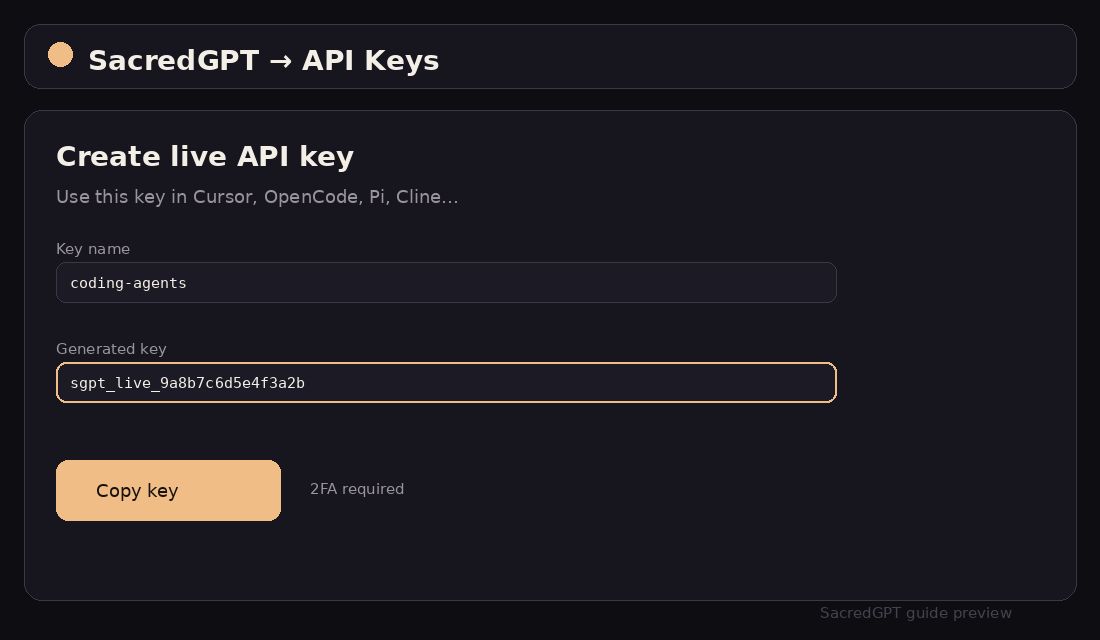
Install the latest build via npm or brew, then create an API key in SacredGPT.
npm i -g opencode-ai@latest
# or: brew install anomalyco/tap/opencodeOpen-source coding agent for terminal and desktop. Connect SacredGPT as a custom OpenAI-compatible provider.
01 — Version & UI Path
02 — Step-by-Step Setup
Install the latest build via npm or brew, then create an API key in SacredGPT.
npm i -g opencode-ai@latest
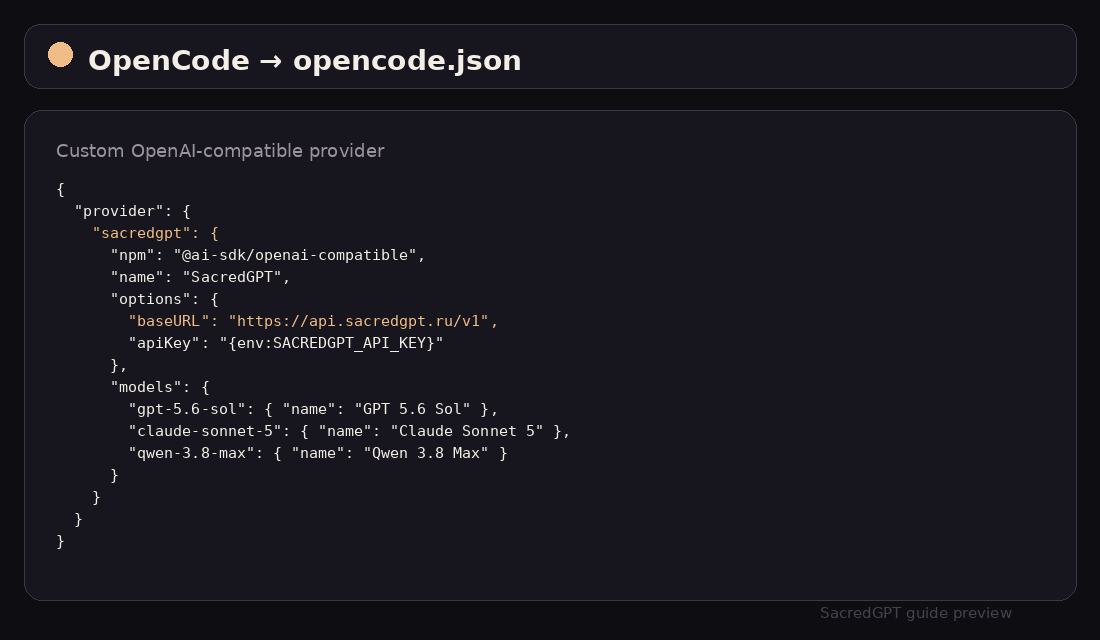
# or: brew install anomalyco/tap/opencodeIn opencode.json define a custom provider using @ai-sdk/openai-compatible and the SacredGPT baseURL.
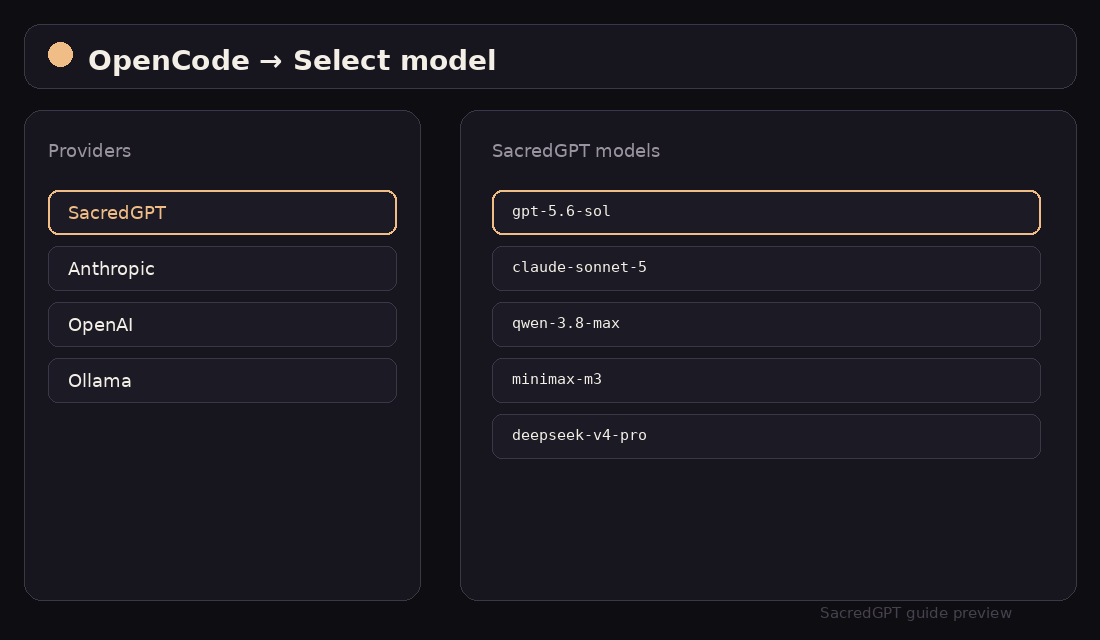
In OpenCode open providers, choose SacredGPT, then a model such as gpt-5.6-sol or qwen-3.8-max.
03 — Configuration Example
{
  "$schema": "https://opencode.ai/config.json",
  "provider": {
    "sacredgpt": {
      "npm": "@ai-sdk/openai-compatible",
      "name": "SacredGPT",
      "options": {
        "baseURL": "https://api.sacredgpt.ru/v1",
        "apiKey": "{env:SACREDGPT_API_KEY}"
      },
      "models": {
        "gpt-5.6-sol": { "name": "GPT 5.6 Sol" },
        "claude-sonnet-5": { "name": "Claude Sonnet 5" },
        "qwen-3.8-max": { "name": "Qwen 3.8 Max" },
        "minimax-m3": { "name": "MiniMax M3" },
        "deepseek-v4-pro": { "name": "DeepSeek V4 Pro" }
      }
    }
  }
}
04 — Troubleshooting
Confirm opencode.json is in the project root or ~/.config/opencode/, then restart OpenCode.
Export SACREDGPT_API_KEY=sgpt_live_… or set apiKey directly. Live keys require 2FA.