
1
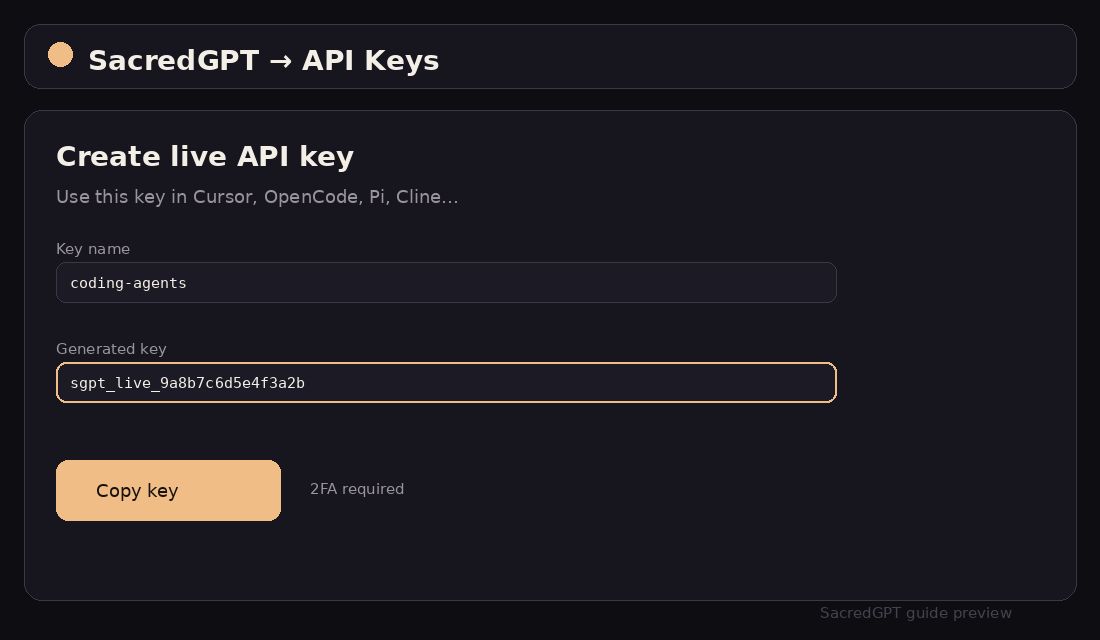
1. Create an API key in SacredGPT
SacredGPT → API KeysIn SacredGPT open API Keys, enable 2FA, and create a live key. You will reuse it across agents.
Seamlessly connect GPT-5.6 Sol, Claude Sonnet 5, and DeepSeek V4 directly into Cursor IDE.
01 — Version & UI Path
02 — Step-by-Step Setup
In SacredGPT open API Keys, enable 2FA, and create a live key. You will reuse it across agents.
Cursor Settings → Models (or Cmd+/Ctrl+, and search OpenAI). Enable Override OpenAI Base URL.
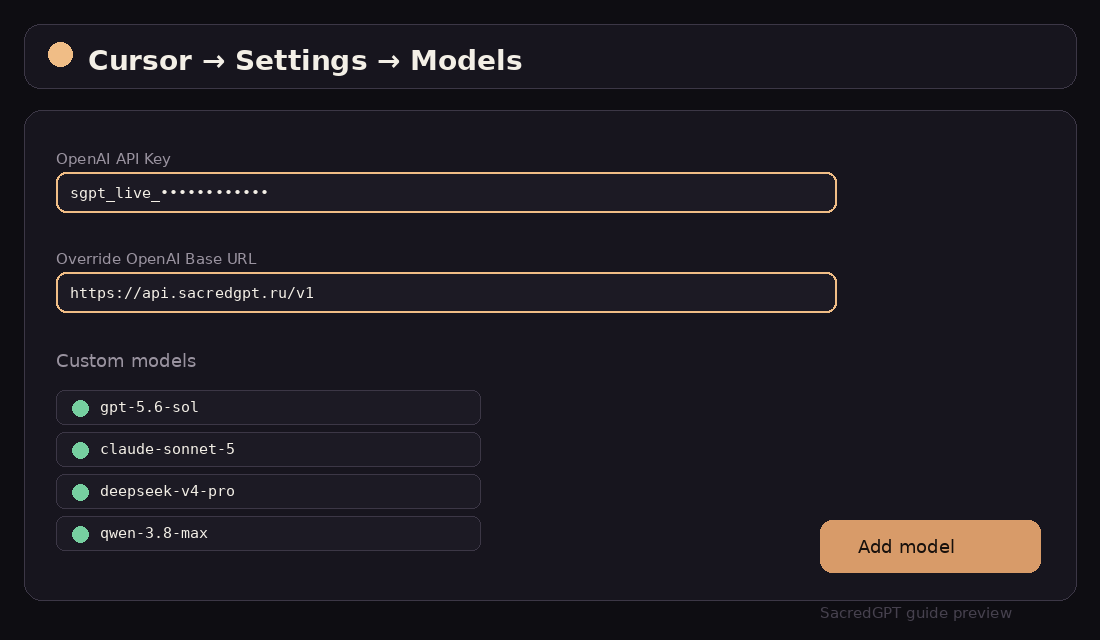
Base URL: https://api.sacredgpt.ru/v1. Paste sgpt_live_… into OpenAI API Key.
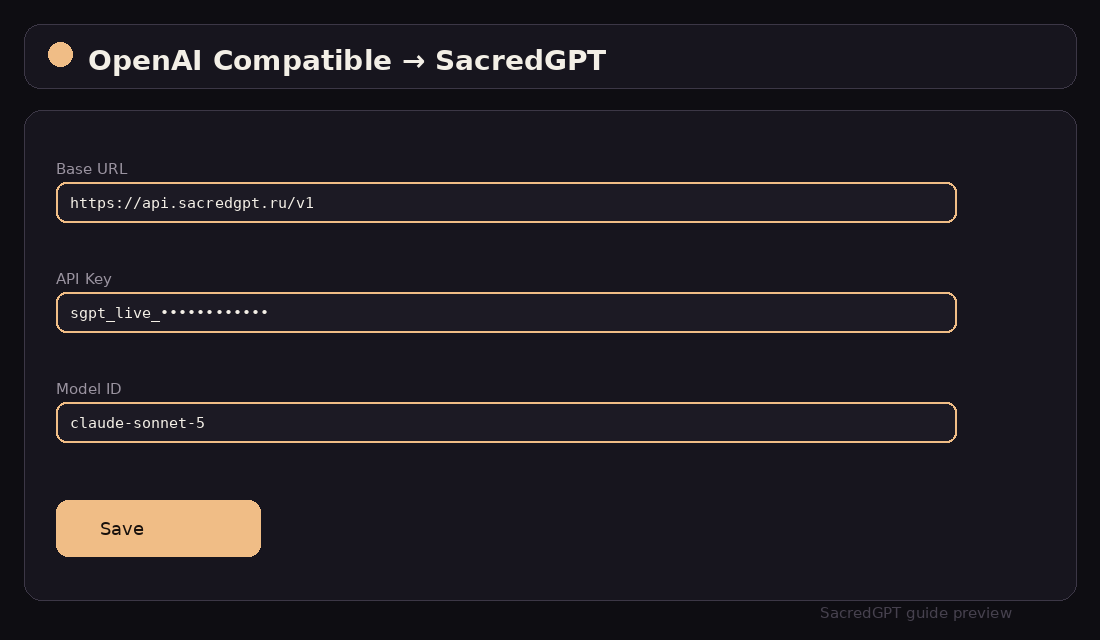
Base URL: https://api.sacredgpt.ru/v1
API Key: sgpt_live_...Add Model with exact IDs: gpt-5.6-sol, claude-sonnet-5, qwen-3.8-max, minimax-m3, deepseek-v4-pro.
gpt-5.6-sol
claude-sonnet-5
qwen-3.8-max
minimax-m3
deepseek-v4-pro
03 — Configuration Example
{
  "openai.apiBase": "https://api.sacredgpt.ru/v1",
  "openai.apiKey": "sgpt_live_9a8b7c6d5e4f3a2b1c0d",
  "cursor.modelNames": [
    "gpt-5.6-sol",
    "claude-sonnet-5",
    "deepseek-v4-pro"
  ]
}
04 — Troubleshooting
Verify that 2FA TOTP is enabled in your SacredGPT account. Live API key issuance mandates an active TOTP.
For line-by-line inline completions, select fast models such as deepseek-v4-pro or gpt-5.6-luna.
Install valid regional CA roots or set NODE_TLS_REJECT_UNAUTHORIZED=0 when launching Cursor behind enterprise proxies.